Torrent downloads with Progressive Downloader
Download torrents alongside your other files in Progressive Downloader. You can choose what to download, follow its progress, and pause and resume when you need to. Torrent support is part of the Plus feature set in the version of Progressive Downloader available from this website. It is not included in the Mac App Store version.
What is a torrent?
A torrent is a way to download files from other people who are sharing them. Instead of getting everything from one website, Progressive Downloader collects small pieces from available computers and puts them together for you. A torrent can contain a single file or a whole collection, such as an album, a set of videos, or a software package.
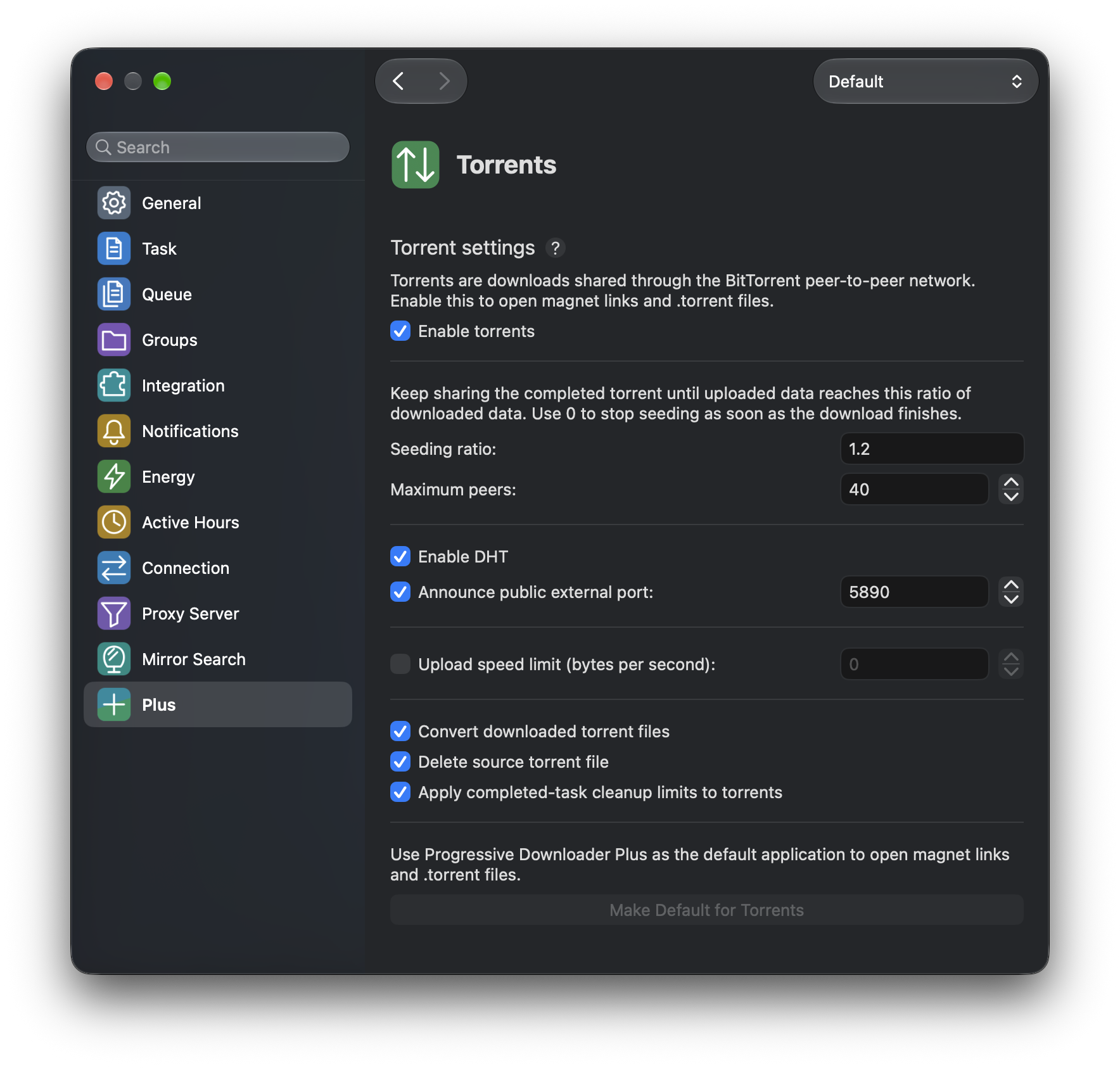
While downloading, Progressive Downloader can also share the pieces you already have with others downloading the same torrent. You can limit the upload speed and set a seeding ratio to control how much data you share before sharing stops automatically after the download finishes. The ratio compares the amount uploaded with the amount downloaded. The download speed depends on your connection and how many people are available to share the files. If nobody has the missing pieces available, the download may need to wait.
Three ways to get started
-
Download a torrent file with Progressive Downloader. Add the download link for a
.torrentfile as you would for any other file. With torrent support enabled, Progressive Downloader downloads this small file, automatically converts the task into a torrent download, and starts downloading its contents to your chosen destination. -
Open a torrent file already on your computer. Open the
.torrentfile with Progressive Downloader to add its contents as a download. -
Use a magnet link. A magnet link points Progressive Downloader to a torrent without
needing a separate
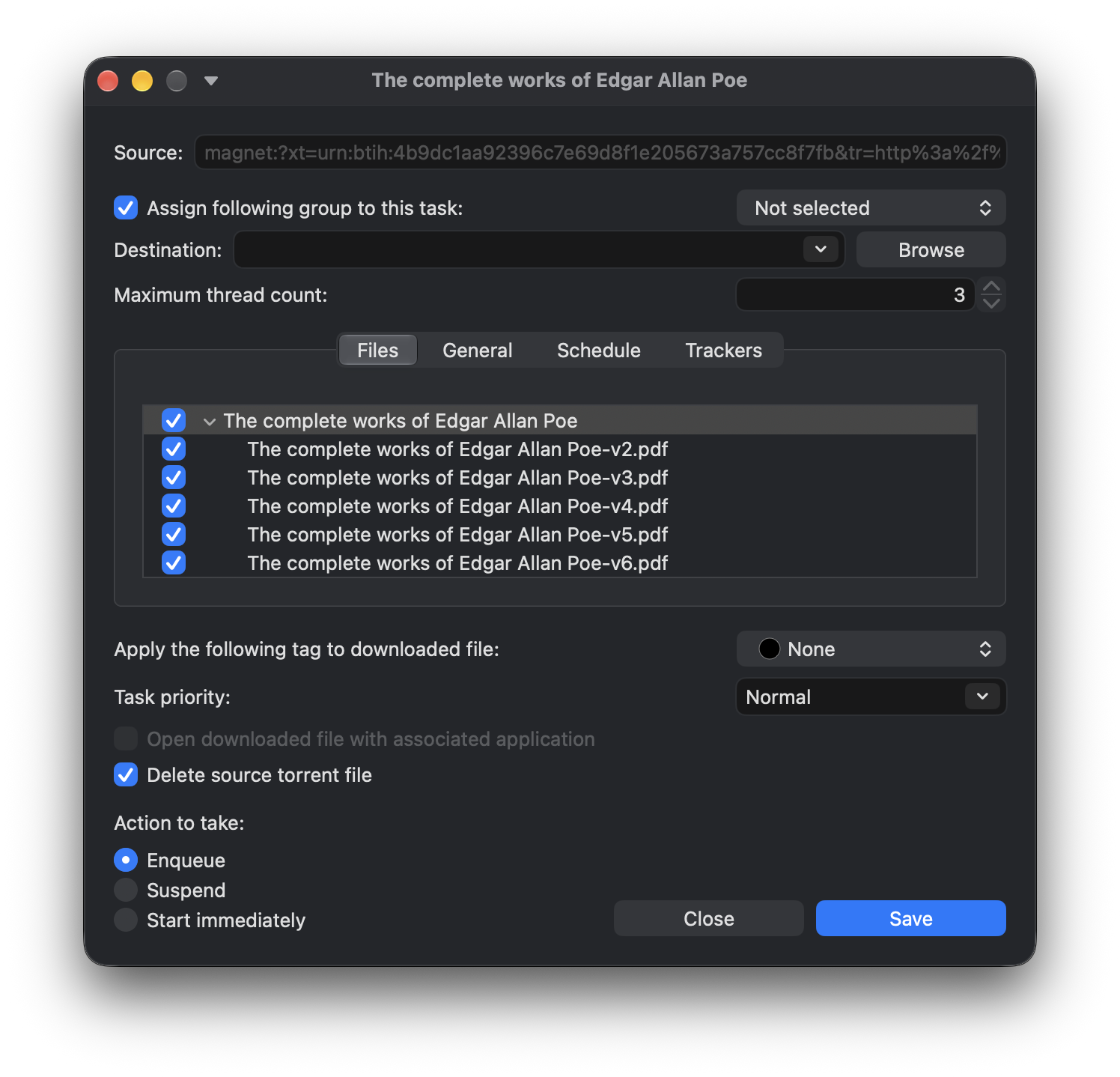
.torrentfile first. Add the link to Progressive Downloader to get started. The file names and sizes may take a little time to appear while Progressive Downloader finds the details.
A .torrent file is a small set of instructions for finding the download;
it is not the video, music, or other content itself.
Add torrents from your mobile device
With PD Link, you can send torrent downloads to your computer
just like other downloads. Add a regular link that points to a .torrent file,
or use a magnet link. Progressive Downloader handles the download on your selected computer,
where Plus and torrent support need to be enabled. For links to .torrent files,
leave Convert downloaded torrent files enabled to start downloading their contents automatically.
Choose your files and manage the download
- Choose the files you want. When a torrent contains several files, use the file list in its download properties to select the ones you need.
- Choose where to save them. Set the destination folder for your download.
- Follow the progress. See your torrent in Progressive Downloader's download list alongside your other downloads.
- Take a break. Pause the download and resume it later.
Download overnight with Active Hours
Torrent downloads can use all of your available internet bandwidth, leaving less room for browsing, video calls, or streaming. Active Hours is especially useful here: schedule your downloads to start at night and stop in the morning, so they run when you are less likely to need the connection for other things. Set your preferred start and finish times in Preferences > Active Hours.
Sharing after the download finishes
Continuing to share a finished download is called seeding. It helps other people get the same files. Progressive Downloader lets you control this with the Seeding ratio setting in the torrent's properties, with a default for new downloads in Preferences > Torrents. For example, a ratio of 1 means sharing as much data as you downloaded. Use 0 to stop sharing automatically when the download finishes.
You can also set an upload speed limit in Preferences > Torrents to control how much of your connection Progressive Downloader uses to share torrent data.
Make torrent support work your way
Open Preferences > Torrents to change these options.
Turn off automatic conversion
Convert downloaded torrent files is on by default.
Switch it off if you only want to save a .torrent file when you download it.
Progressive Downloader will keep it as an ordinary downloaded file instead of starting the torrent's contents
automatically. You can still open torrent files or add magnet links yourself.
Turn torrent support off entirely
Clear Enable torrents to switch off torrent support. You can continue using Progressive Downloader for ordinary downloads and turn torrent support back on whenever you want to use it again.
Keep or remove the source torrent file
When opening a torrent file from your computer, Delete source torrent file
lets Progressive Downloader remove that small file after the download task is added. You can also change this
choice in the new torrent task window. This option refers to the source
.torrent file, not the content you are downloading.